Make Cards Controls & HUD Map
Learn every station, menu, and camera habit so the factory loop never stalls on mis-clicks.
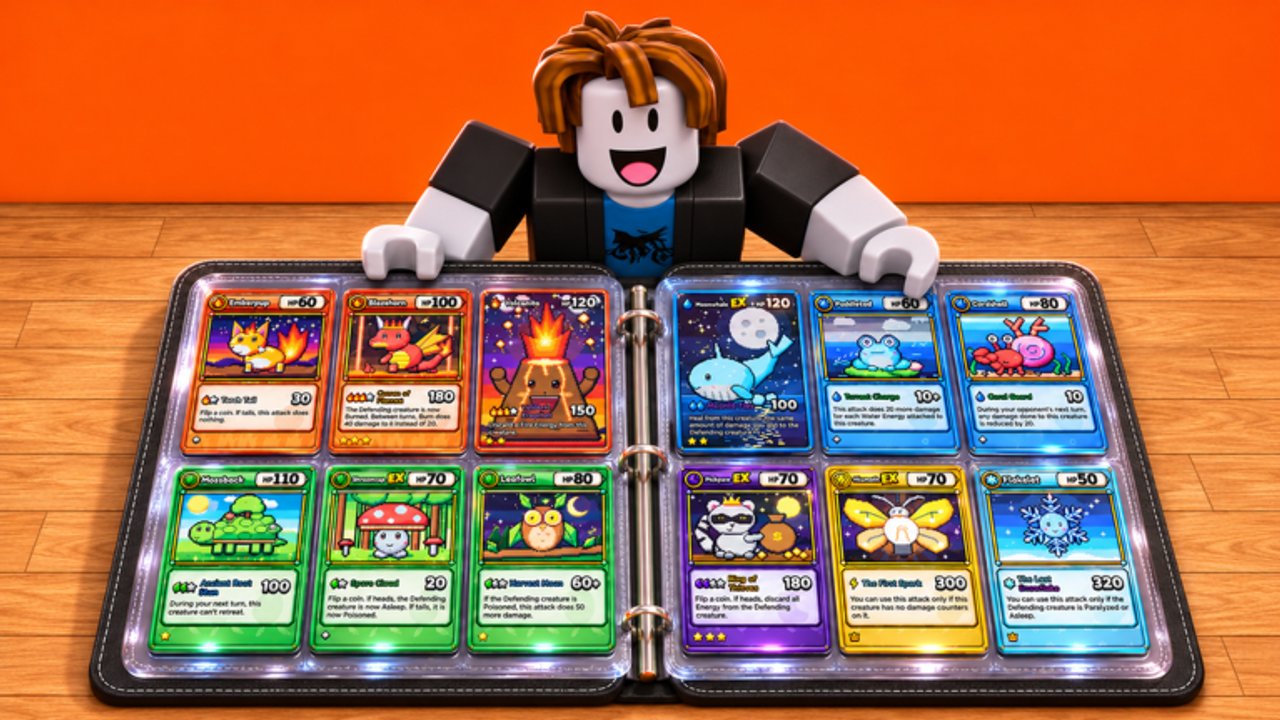
Make Cards! rewards players who know where to stand and what to click. This controls and HUD guide maps movement, the draw / seal / serve stations, codes and settings menus, and the camera habits that keep PC and mobile sessions smooth. Read it once after Getting Started, then return whenever a patch moves a button.
Official play link: Make Cards on Roblox. Vibed Games ships a Simulation / Tycoon with a compact factory floor — learning the map early is faster than guessing under a customer queue.
Movement basics
Make Cards uses the standard Roblox control set:
- PC — WASD or arrow keys to walk; mouse to look; click or tap prompts to interact with stations.
- Mobile — virtual joystick plus tap-to-interact on highlighted desks, sealers, and counters.
- Gamepad (if enabled on your device) — left stick move, face buttons for prompts; confirm bindings in Roblox settings if a prompt feels unresponsive.
Walk close enough that the interaction billboard appears before you mash input. Standing half a stud too far is the most common “broken station” report from new players.
Station map: draw, seal, serve
Think of the floor as three jobs that must stay in balance.
Draw / art station
This is where cards are created. Face the desk squarely, keep the camera slightly above the surface, and finish a card before you sprint to sealing. Deep technique lives in How to Draw Cards. From a controls angle, your job is simple: interact, complete the prompt chain, confirm the finished card, then leave without bumping the next player’s camera in busy servers.
Seal / pack station
Sealing turns art into sellable boosters and boxes. Approach from the open side of the machine so the prompt does not hide behind geometry. If a seal animation is mid-cycle, wait rather than re-clicking — double taps often cancel or queue nothing useful. Speed habits are covered in How to Seal Boosters.
Serve / customer counter
Finished packs become cash only when customers are served. Keep a clear sightline to the queue. On mobile, pinch out so both the counter and the nearest seal station stay visible; on PC, bind a comfortable mouse sensitivity so a quick glance does not whip the camera into a wall.
Menus: codes, settings, and management
After the factory streams in, scan the HUD edges for:
| Menu | Typical home | Use it for |
|---|---|---|
| Codes / Gift | Left or top icon, sometimes under Settings | Redeem strings from the Codes Hub |
| Settings / gear | Corner HUD | Graphics, audio, sometimes nested Codes |
| Staff / hire | Management panel | Roles and wages (Hire Staff) |
| Upgrades / shop | Economy panel | Machines and rooms |
If you cannot find Codes on day one, finish onboarding prompts first — many Vibed Games titles unlock redeem after the tutorial. Full redeem troubleshooting is on How to Redeem Codes.
Camera tips: PC vs mobile
PC
- Lower mouse sensitivity slightly if you overshoot desks.
- Keep the camera high enough to see desk, sealer, and counter in one pan.
- When hiring or expanding, orbit once so new props do not block prompts.
Mobile
- Prefer landscape for wider station visibility.
- Avoid ultra-low graphics if prompts disappear; bump one step if interactions feel sticky.
- Zoom out before sealing rushes so you can pivot to the counter without re-pinching every sale.
Lag makes every UI worse. Hop servers if replication stutters — six-player lobbies still suffer when one client hitch cascades.
Common UI mistakes
- Clicking through a tutorial banner — you miss the station order Vibed Games wants to teach.
- Opening shop while mid-seal — you lose rhythm and invent a fake bottleneck.
- Hunting codes before the HUD finishes loading — redeem fails and you blame the string; see Codes.
- Standing inside another player’s desk — prompts fight; step aside in public servers (Multiplayer Tips).
- Ignoring the customer counter camera — packs pile while you admire art.
- Expanding rooms before you can path them — long walks feel like “broken controls”; fix layout with Expand Factory.
Ten-minute controls drill
- Join, complete prompts, locate draw, seal, and serve without opening shop.
- Produce one full pack while naming each prompt out loud.
- Open Settings, note where Codes lives, close without buying anything.
- Pan camera to keep all three stations visible for thirty seconds.
- Only then open Make Money Fast goals or tier lists.
After patches
UI labels move in young tycoons. When a button name changes, match by function (draw, seal, hire, expand, codes) rather than exact text. Run the Post-Update Checklist and skim Updates after Roblox shows a fresh stamp.
Related pages
Master the HUD once and every later guide becomes muscle memory instead of a scavenger hunt.
Accessibility and comfort
If prompts are hard to read, raise UI scale in Roblox settings where available and stand slightly farther from bright emissive props. Colour-heavy desks can wash out billboards on low brightness phones — raise device brightness for the first hour until you know silhouette shapes by heart.
Practice without wasting cash
You do not need upgrades to practise controls. Spend a private or quiet public session walking a triangle: draw desk → sealer → counter → back. Time one clean loop. That baseline number is more valuable than any cosmetic, and it makes tier list spends measurable later.
Frequently Asked Questions
Quick answers to the most common Make Cards questions.
Where are the main stations in Make Cards?
Find the draw or art desk, the seal or pack machine, and the customer counter. Complete one full loop through all three before opening the shop.
Where do I open codes and settings?
Look for Codes, Gift, or gear icons on the HUD after the factory loads. Some builds nest redeem under Settings until onboarding finishes.
Why do station prompts fail on mobile?
Usually you are slightly out of range, the camera is too tight, or a tutorial banner is still capturing taps. Zoom out, step closer, and finish prompts first.
Do controls change after updates?
Labels and icon positions can move. Match menus by function and re-run a quick loop using the Post-Update Checklist after major patches.